



Product Description
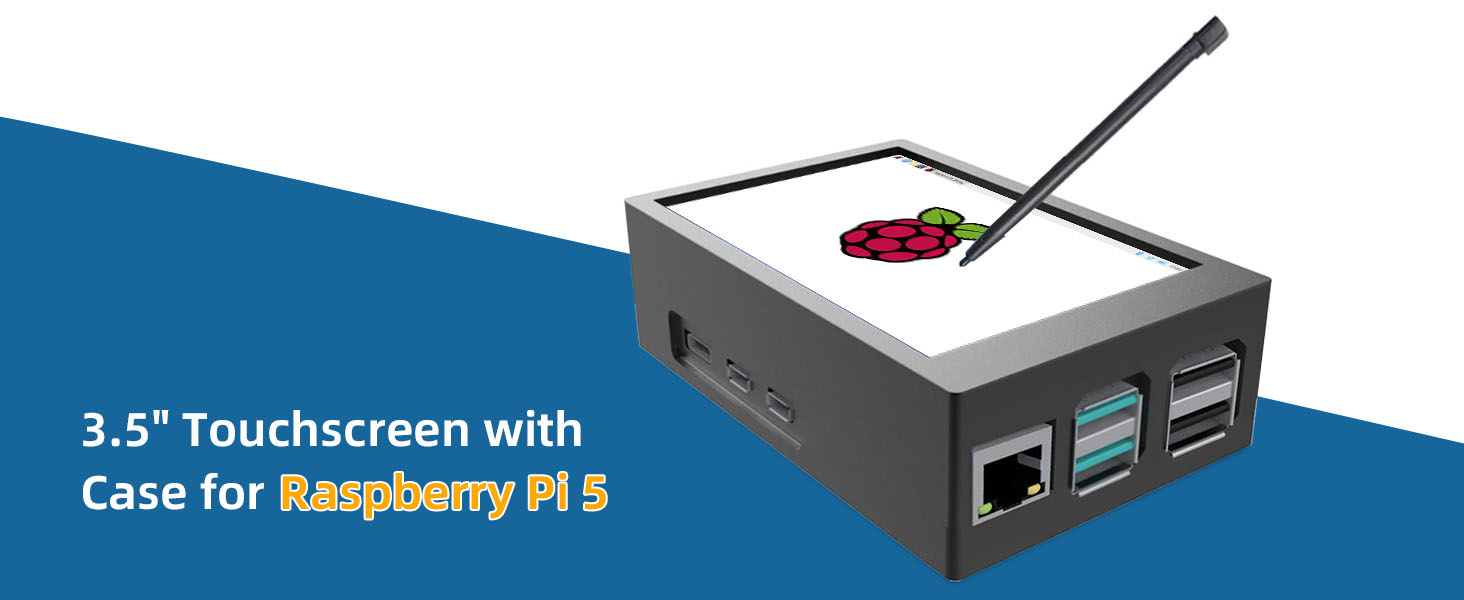


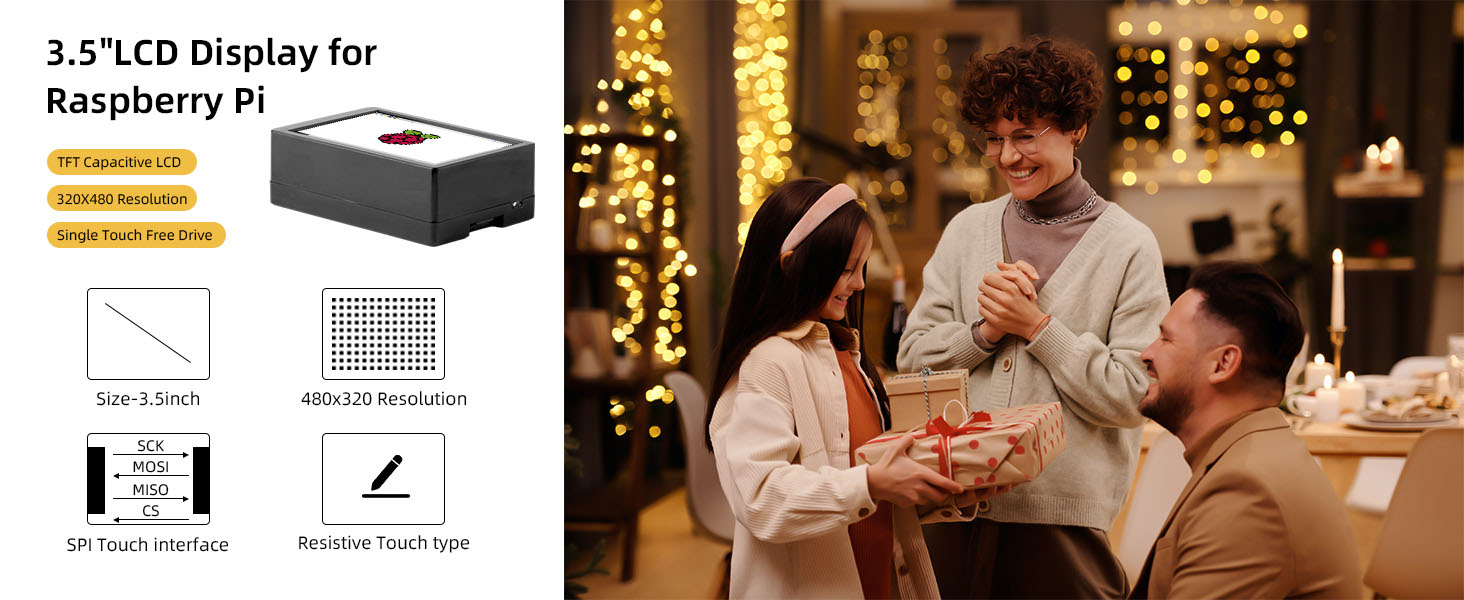
3.5 Inch Touchscreen for Raspberry Pi
 3.5″ Touchscreen with Pi5 Case
|
 3.5″ Touchscreen with Pi4 Case
|
 3.5″ Touchscreen
|
|---|---|---|
Screen Size3.5 inch |
Screen Size3.5 inch |
Screen Size3.5 inch |
CaseRaspberry Pi 5 |
CaseRaspberry Pi 4 |
CaseNo |
Heat Sink4 pcs |
Heat Sink3 pcs |
Heat SinkNo |


Authentically Opinionated –
I keep my Raspberry Pi in my basement in a location that doesn’t allow me to place a monitor… So I decided to order this display! It was easy to install, fit nicely, and is reasonably functional. As advertised, it is a “resistive” touch screen. Different than most touch screen devices we use nowadays, which are “capacitive” displays, this display requires touching AND applying pressure instead of just touching. While a capacitive touch screen would be easier to use, this does work quite well with the included stylus. Because I still plan on using a mouse and keyboard with the display, I don’t mind the less functional touchscreen technology. If you need just a display for your Raspberry Pi, this is a great option.
Jessica R. –
Works great with raspbian os.